
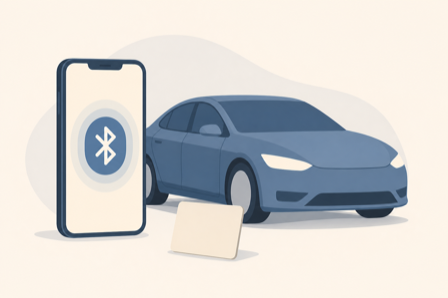
You walk up, the door stays locked, and the phone key drops out again. Most of these disconnects come down to a few phone settings, and the key card is the backup you should always carry.
The Tesla phone key is genuinely convenient when it works: your car senses your phone over Bluetooth and unlocks as you approach. When it stops, usually after a phone update or out of nowhere, it is maddening, and you are left standing at a locked door. The reassuring part is that most phone-key failures trace to Bluetooth and app permissions on your phone, not the car itself. Here is how to tell what went wrong, the fastest order to fix it, and why the key card deserves a permanent spot in your wallet.
Key Takeaways
The phone key relies on a Bluetooth link between your phone and the car, so anything that weakens that link breaks it: Bluetooth turned off, battery-saver mode throttling the connection, or the Tesla app losing its background, location, or Bluetooth permissions, often after a phone update. Work through the phone settings first, then re-pair the key using your key card, and check the car for a pending software update. Keep a key card on you as a reliable backup, since a phone can always die.
Why the Phone Key Disconnects
The phone key is a Bluetooth connection, and Bluetooth is where almost every failure starts. If Bluetooth is off, or your phone is in low-power or battery-saver mode, the link gets throttled and the car cannot find your phone reliably. The Tesla app also needs the right permissions to work in the background: location set to Always, background activity allowed, Bluetooth access granted, and notifications on. A phone operating-system update frequently resets one of these without telling you, which is why a key that worked for years suddenly quits. One useful clue: if you can still lock and unlock the car from inside the Tesla app but the walk-up phone key does nothing, the car is fine and the problem is the Bluetooth or permissions on your phone.
The Fix, in Order
Run these in sequence and stop when the phone key reconnects. Tesla’s own support pages cover the app setup this builds on.
- Turn Bluetooth on and battery-saver off. Low-power mode throttles Bluetooth, so switch it off and keep the phone charged rather than near empty.
- Fix the app permissions. Set the Tesla app’s location to Always, allow background activity and Bluetooth, and turn notifications on. Leave the app running rather than force-closing it.
- Toggle and reopen. Turn Bluetooth off and on, then force-close and reopen the Tesla app so it re-establishes the link.
- Restart your phone. A simple restart clears a surprising share of Bluetooth glitches.
- Re-add the phone key. In the car, remove your phone as a key, then add it again, authenticating with your key card when prompted. This rebuilds the pairing cleanly.
- Check the car. Install any pending software update, and if the trouble continues, a software reinstall through service or a weak 12-volt battery can be the underlying cause.
Phone Key vs Key Card vs Key Fob
While you sort out the phone key, it helps to know how the three ways into a Tesla compare, so you always have a reliable fallback.
| Key type | How it works | Best for | Watch out for |
|---|---|---|---|
| Phone key | Bluetooth through the Tesla app | Everyday hands-free entry | Bluetooth or permission drops, and a dead phone |
| Key card | A tap on the door pillar and center console | A reliable backup, guests, and valet | A manual tap each time, and it is easy to misplace |
| Key fob | A dedicated Bluetooth fob, sold separately | A pocket key that stays with you | An extra cost and another device to keep charged |
The takeaway is to treat the key card as your safety net. Keep one in your wallet even if you use the phone key daily, because a drained phone, a dead battery, or a bad update can lock you out at the worst moment. If you lose both key cards, order replacements and re-pair them from the car, and consider a key fob if you would rather carry a dedicated device than rely on your phone.
Frequently Asked Questions
Why does my Tesla phone key keep disconnecting?
Almost always because of Bluetooth or app permissions on your phone. Bluetooth may be off, battery-saver mode may be throttling it, or the Tesla app may have lost its location, background, or Bluetooth access, often after a phone operating-system update. If you can still control the car from inside the app but the walk-up key does nothing, the car is fine and the fix is on your phone. Reset those settings and re-pair the key.
How do I re-pair my Tesla phone key?
Open the car’s key settings on the touchscreen, remove your phone from the list of keys, then add it again. When you add it back, the car asks you to authenticate with your key card by tapping it on the center console. This rebuilds the Bluetooth pairing from scratch, which clears most stubborn disconnect problems. Make sure the Tesla app has Bluetooth and location permission on your phone before you start.
Can I drive my Tesla with just the key card?
Yes. The key card is a fully functional key: tap it on the door pillar to unlock, then tap it on the center console to enable driving within a short window. It is slower than the phone key because you tap each time, but it always works and needs no battery or connection. That reliability is exactly why you should keep a key card with you as a backup to the phone key.
Should I keep a key card or get a key fob as backup?
A key card is free with the car and reliable, so at minimum keep one on you at all times. A key fob is an optional purchase that works over Bluetooth like the phone, so it slips in a pocket and unlocks hands-free, but it costs extra and is another device to maintain. If you frequently hand off the car or dislike tapping a card, the fob is worth it, otherwise the key card covers most people.
What To Do Next
Start on your phone: turn off battery-saver, confirm the Tesla app has Always location, background activity, and Bluetooth, then restart the phone. If the key still drops, remove and re-add it using your key card, and install any pending car software update. Put a key card in your wallet today so a dead phone never strands you. For more on living with an EV and everyday tech, see our Autos and Tech News sections.


Leave a Reply
You must be logged in to post a comment.