
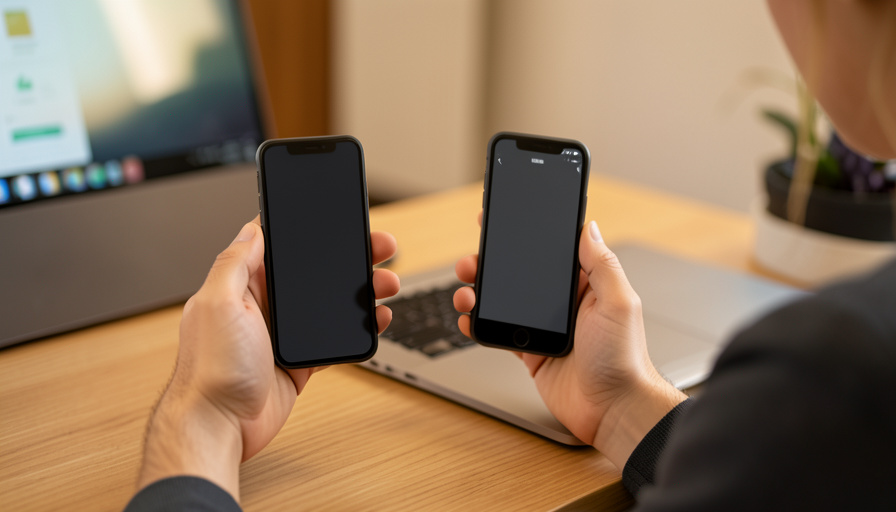
Your number is unchanged, but your new phone can still lock you out. Here is what survives a phone swap, what quietly disappears, and how to protect your 2FA.
You unbox the new phone, sign into your accounts, restore your apps, and everything looks back to normal. Then a site asks for a two-factor code, you open your authenticator app, and it is empty. Your number never changed, so this catches people off guard, but keeping the same number only saves one kind of 2FA. The rest depends on what you did before you set the old phone aside. Here is exactly what carries over and what does not.
At a Glance
Text-message 2FA keeps working because it follows your phone number, not the device, so a new phone with your old SIM or eSIM still gets the codes. Authenticator app codes are the trap: they live on the device and do not move to a new phone unless you turned on cloud sync or transferred them first. Passkeys sync if they are backed up to iCloud, Google, or Windows. Trusted-device status resets, and backup codes still work if you saved them. Set up your authenticator’s cloud backup and print your backup codes before you wipe the old phone.
What survives a phone swap and what doesn’t
Not all two-factor methods behave the same way when you change devices, and the differences are the whole story.
- SMS and call codes: safe. These are tied to your phone number. Move your SIM or activate your eSIM on the new phone and the codes keep arriving as before.
- Authenticator app codes: at risk. The secret keys sit on the old device. Without cloud sync or a transfer, they do not appear on the new phone, and every account using them stops accepting your codes.
- Passkeys: usually fine. Passkeys saved to iCloud Keychain, Google Password Manager, or Windows Hello restore automatically once you sign into that account on the new phone. Device-bound passkeys do not.
- Trusted devices: reset. A “remember this device” flag lived on the old phone. The new one is a stranger to your accounts and will be challenged fresh.
- Backup codes: still valid. Those one-time codes each service gave you at setup work from anywhere, which is exactly why they are worth saving.
The authenticator app trap
This is where most people get burned. An authenticator app generates codes from a secret seed stored on the phone itself, so a fresh install on a new device starts blank. Whether your codes come back depends entirely on the app and its settings. Google Authenticator can sync your codes to your Google account, but only if that sync was switched on before the move, and its transfer feature otherwise needs both phones in hand. Authy and Microsoft Authenticator offer encrypted cloud backups you restore on the new device. The disaster case is simple: an authenticator with no backup, on a phone you already wiped or traded in, leaves you locked out of every account it protected, even though your phone number never changed. Cloud sync also moves only the seeds, not the individual backup codes a bank or GitHub handed you, so those still need saving separately.
Do this before you switch phones
Ten minutes of prep on the old phone prevents almost every lockout.
- Turn on your authenticator’s cloud backup or sync, or use its built-in export or transfer tool to move codes to the new phone directly.
- Confirm your number is active on the new phone, whether that means moving the SIM or activating the eSIM, so SMS codes keep flowing.
- Print or save the backup codes for your important accounts, especially email, banking, and anything with money attached.
- Check that your passkeys are backed up to iCloud, Google, or your password manager so they restore on the new device.
- Keep the old phone powered on and untouched until you have logged into every critical account from the new one.
If you already wiped the old phone
Recover in order of leverage. Start with your email accounts, since those are the master key that resets almost everything else, and get back into them first using backup codes or account recovery. With email restored, use it to reset two-factor on your other services one by one. Where a service offers no recovery path and you have no backup codes, contact its support directly and be ready to prove your identity, which takes time by design. A single unexpected security email is also worth reading closely rather than ignoring, since it can be the first sign someone is testing your locked accounts. If you get an unrequested password reset email during all this, treat it as a signal, not noise.
Frequently Asked Questions
Do I lose 2FA if I get a new phone but keep my number?
Only some of it. SMS codes keep working because they follow your number, but authenticator app codes do not transfer unless you enabled cloud sync or moved them, so those accounts can lock you out.
Does my authenticator app move to a new phone automatically?
No, not by default. The codes are generated from secrets stored on the device. You need cloud backup, sync, or the app’s transfer tool turned on before the switch, or the new install starts empty.
Will SMS text codes still reach my new phone?
Yes, as long as your phone number is active on the new device through your SIM or eSIM. SMS 2FA is tied to the number, not the hardware.
Do passkeys transfer to a new phone?
Synced passkeys do. If they are saved to iCloud Keychain, Google Password Manager, or Windows Hello, they restore when you sign into that account on the new phone. Device-bound passkeys stay behind.
I already wiped my old phone and I’m locked out. What now?
Recover your email accounts first, using backup codes or account recovery, then use email to reset two-factor on your other services. For accounts with no recovery option, contact support and verify your identity.
What’s the best way to avoid this next time?
Use an authenticator with encrypted cloud backup, save your backup codes somewhere safe, and keep your old phone until every account is confirmed on the new one. Passkeys with cloud sync also make device changes painless.
What To Do Next
Before you hand over your old phone, treat it as the key it is. Turn on your authenticator’s backup, print the codes for anything with money or identity attached, confirm your number is live on the new device, and log into your important accounts from the new phone while the old one is still working. Keeping the same number handles your text codes, but the authenticator app is the piece that quietly strands people, and five minutes of backup is all it takes to avoid it. For more on account security, browse ShoutPost’s Tech News section.


Leave a Reply
You must be logged in to post a comment.