
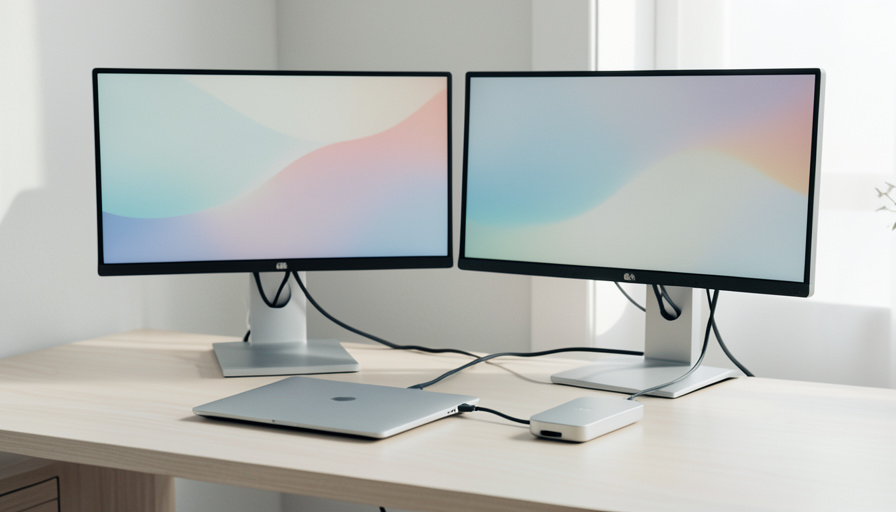
A dock advertised for dual 4K at 60Hz only works if your laptop can feed it. Here are the 12 features to compare so you don’t end up stuck at 30Hz.
The most common docking disappointment goes like this: you buy a dock whose box promises “dual 4K at 60Hz,” plug in two monitors, and get two sluggish 30Hz screens or, worse, one mirrored display. You did not get scammed, exactly. The dock can do what it claims. Your laptop just cannot hand it enough video to make it happen. On r/UsbCHardware this shows up constantly, with buyers reporting that dongles sold for 4K60 top out around 1080p at 30Hz on their machine.
So the dock’s spec sheet is really a promise your laptop has to keep. Compare these twelve features, in roughly this order of importance, and you will know before you buy whether the setup can actually run two 4K screens smoothly.
Bottom Line First
Dual 4K at 60Hz over one USB-C cable needs real bandwidth, and the laptop matters more than the dock. You want a laptop with DisplayPort 1.4 (HBR3) alt mode plus Display Stream Compression, or a Thunderbolt 4 or USB4 port. Then match it to a dock that supports MST or Thunderbolt, drives both outputs at 60Hz, and delivers enough power to charge the laptop. If your laptop only has DisplayPort 1.2, dual 4K60 is not possible without a DisplayLink dock.
Start with the laptop, not the dock
Before comparing docks, find out what your laptop’s USB-C port actually supports, because that ceiling cannot be raised by any accessory. A port that only carries DisplayPort 1.2 tops out around 17 Gbps, which is enough for a single 4K60 or dual 1080p, and no dock changes that. DisplayPort 1.4 with HBR3 roughly doubles the usable bandwidth, and with Display Stream Compression it can carry two 4K60 streams. A Thunderbolt 4 or USB4 port is the safest option, since one port is specified to drive two 4K 60Hz displays. Check your laptop’s graphics support for the maximum displays and resolution before you spend a cent.
The connection type decides everything
Three different technologies can drive dual monitors from a USB-C port, and they are not interchangeable. This is the single most important thing to match.
| Connection | Dual 4K60? | Watch for |
|---|---|---|
| DisplayPort Alt Mode + MST | Yes, with DP 1.4 HBR3 and DSC | Fails or drops to 30Hz on DP 1.2 laptops |
| Thunderbolt 4 / USB4 | Yes, reliably | Needs a TB4/USB4 port on the laptop |
| DisplayLink | Yes, via a driver | Software compression; weaker for HDR and gaming |
DisplayLink is the escape hatch worth knowing about. It sends video over plain USB data using a driver and a chip in the dock, so it can run dual 4K even on a laptop whose port cannot do it natively. The tradeoff is a driver install and compression that is fine for spreadsheets and browsers but not ideal for fast gaming or color-critical work.
12 features to compare before you buy
With the connection sorted, run down the rest of the list.
- Host connection type. Confirm whether the dock uses DP Alt Mode with MST, Thunderbolt, or DisplayLink, and that it matches what your laptop supports.
- Your laptop’s DisplayPort version. DP 1.4 HBR3 or newer for native dual 4K60. DP 1.2 means you need Thunderbolt or DisplayLink instead.
- MST support. Multi-Stream Transport splits one DP stream into two displays, and Windows supports it natively. The dock must list MST for the DP Alt Mode path.
- DSC support. Display Stream Compression is what squeezes dual 4K60 into the available bandwidth. Your laptop’s GPU, the dock, and ideally the monitors should all support it.
- Refresh rate at dual 4K. The number that gets hidden in fine print. Insist on 60Hz per display, not 30Hz, and check the spec for the exact dual-monitor mode, not the single-monitor best case.
- Output ports and versions. Look for DisplayPort 1.4 or HDMI 2.0/2.1 outputs, and make sure the ports and your monitors’ inputs match without a lossy adapter.
- Thunderbolt 4 or USB4 certification. If your laptop has it, a certified dock is the most reliable route to dual 4K60 and high power in one cable.
- Power Delivery wattage. For a true one-cable setup, the dock should charge your laptop, which usually means 65W to 100W. Thin ultrabooks are fine at 65W; performance laptops want more.
- HDR at dual 4K. If you want HDR, verify it works at dual 4K60 specifically, since HDR eats extra bandwidth and some docks drop resolution or refresh to fit it.
- Ethernet and USB ports. Check for gigabit or 2.5G Ethernet and the number and speed of USB-A and USB-C data ports, since a dock is also your hub.
- Bandwidth sharing. On a single link, video and data compete. A dock pushing dual 4K plus a fast SSD and Ethernet can throttle one of them, so read how it allocates bandwidth.
- Build, cooling, and cable. Docks running dual 4K get warm and occasionally drop displays if they overheat or use a marginal cable. A short, quality host cable and decent cooling save you random blackouts.
The dual 4K 30Hz trap
The 30Hz fallback is the outcome to design against, because 30Hz makes a cursor feel like it is dragging through syrup. It happens when the total bandwidth cannot fit two 4K60 streams, so the system quietly downgrades to keep both screens lit. The usual culprits are a DP 1.2 laptop, a missing DSC link somewhere in the chain, or a cheap dock without MST. Match a DP 1.4 or Thunderbolt laptop to an MST or Thunderbolt dock, and the trap disappears. When in doubt, a DisplayLink dock sidesteps the bandwidth question entirely at the cost of the driver.
Frequently Asked Questions
Why does my dock only show 30Hz on 4K?
Because the connection cannot carry two full 4K60 streams, so it drops the refresh rate to fit. Usually the laptop only supports DisplayPort 1.2, or DSC is not active somewhere in the chain. A Thunderbolt or DisplayLink dock fixes it.
Do I need Thunderbolt for dual 4K monitors?
Not strictly. A laptop with DisplayPort 1.4 HBR3 alt mode and DSC can drive dual 4K60 through an MST dock. Thunderbolt 4 or USB4 is simply the most reliable route and the easiest to shop for.
What is DisplayLink, and should I use it?
DisplayLink runs video over USB data with a driver, so it works even on laptops that cannot do dual 4K natively. Use it when your port is limited, but skip it for gaming or color-critical work where its compression shows.
Will any USB-C dock charge my laptop too?
Only if it supports Power Delivery at enough wattage. Look for 65W or more for ultrabooks and higher for performance laptops, otherwise you will still need the laptop’s own charger.
Does Windows handle dual monitors better than a Mac here?
For MST docks, yes. Windows supports Multi-Stream Transport natively, so a single DP Alt Mode dock can split into two displays, which is why these docks are marketed for Windows setups.
How do I check what my laptop supports before buying?
Look up your laptop’s USB-C port specs for DisplayPort version and whether it is Thunderbolt or USB4, and check your graphics driver’s maximum display configuration. That tells you the ceiling any dock has to work within.
Final Word
Buying a dock for dual 4K is less about the dock’s marketing and more about a bandwidth budget you set the moment you chose your laptop. Confirm your port does DisplayPort 1.4 with DSC or Thunderbolt, match it to an MST or Thunderbolt dock rated for 60Hz on both outputs, and give yourself enough Power Delivery for one cable. Get those right and the twelve smaller features fall into place. For another connectivity fix, see our guide to why CarPlay keeps disconnecting, and browse more in ShoutPost’s Tech News section.



Leave a Reply
You must be logged in to post a comment.