
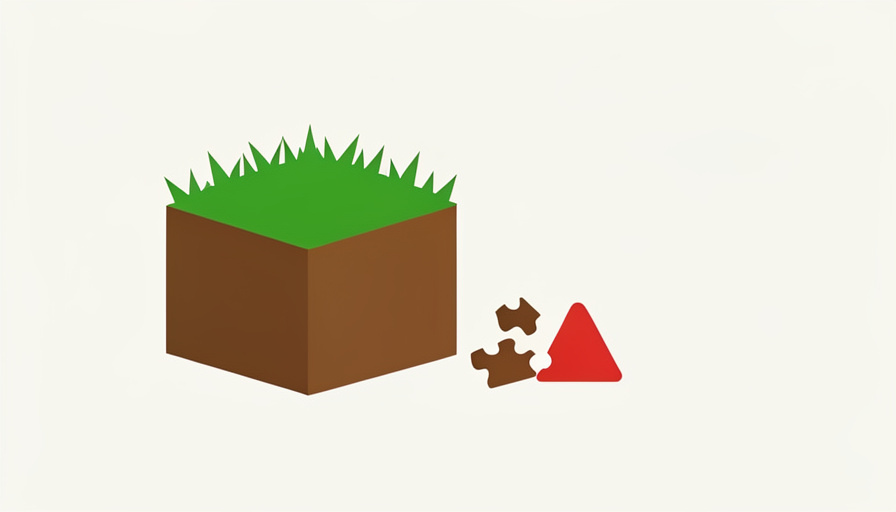
The new Minecraft version drops, you eagerly update the server, and then it will not start, or half your plugins throw red errors in the console. It happens almost every major update, and it is not a bug in your setup. It is the predictable result of how Minecraft servers and plugins fit together.
If you run a Minecraft server, the update-day scramble is a familiar ritual: patch the game, watch your plugins fall over, and spend the evening chasing compatibility. The good news is that the cause is well understood and the fix is a routine, not a mystery. Here is why Minecraft updates break plugins and how to update without taking your server down with them.
The Short Version
Plugins are built against a specific server version, so when Minecraft updates, the server software, the plugin builds, and the client can fall out of sync. That mismatch causes the outdated-plugin errors and startup failures. The fix is to match each plugin to your exact server version, update your server software (Paper tends to get stable builds fastest), and install plugins one at a time. Back up first and do not rush to the newest version.
Why an Update Breaks Everything
A plugin is code written against a particular version of the server’s programming interface. When Minecraft changes, that interface can change too, and a plugin built for the old version may call something that no longer exists or works differently. The server then flags the plugin as outdated or fails to load it.
The core problem is version fragmentation. For everything to work, three pieces have to agree: the server software build, each plugin’s build, and the Minecraft client version players connect with. Right after an update, those three often disagree, which produces the console warnings, broken features, and refuse-to-start behavior server owners dread.
Who Is Catching Up, and Why It Takes Time
The other half of the story is timing. The popular server platforms, Bukkit, Spigot, and Paper, each have to update to support a new Minecraft version, and then every individual plugin developer has to update their plugin on top of that. Everyone moves at a different speed.
That staggered catch-up is why the days and weeks right after a major update, and snapshot releases in particular, are the messiest. Your server software might be ready before a favorite plugin is, or vice versa. The version you are trying to run simply does not have a complete, compatible set of parts yet, and no amount of restarting fixes that until the pieces arrive.
The Fixes That Work
When plugins break, work the problem methodically rather than reinstalling everything at once.
- Match each plugin to your exact server version. Check your server version, then download the plugin build made for it from the plugin’s official page. As Spigot’s compatibility references show, the right build for your version matters more than the newest one.
- Update your server software. Keeping your server platform current is half the battle, and Paper, which documents its own update process, typically ships stable builds for a new Minecraft version faster than the alternatives.
- Install and test one at a time. When rebuilding, add a single plugin, start the server, confirm it works, then add the next. That makes the offending plugin obvious instead of hidden in a pile.
- Read the console. The error log usually names the plugin and the problem, which points you straight at what to update or remove.
Bridging Versions Without Waiting
Sometimes you want newer players to connect while keeping a stable, slightly older server so your plugins keep working. Compatibility layers exist for exactly this. Tools in the ViaVersion family let clients on a newer Minecraft version join a server running an older one, buying you time until your plugins catch up to the latest release.
This is a common strategy for busy servers that cannot afford downtime. You hold your server and plugins on a known-good version, add a version-bridging plugin so nobody is locked out by their client update, and upgrade the whole stack later when every plugin you rely on has a compatible build.
How to Update Without Breaking Your Server
The best fix is a careful update process that avoids the breakage in the first place.
- Back up before you touch anything. A full backup of the world and config means a failed update is a rollback, not a disaster.
- Do not rush the newest version. Staying a version behind until your key plugins have compatible builds is the single biggest stability win.
- Test on a copy first. Update a duplicate of your server, confirm the plugins load, and only then update the live one.
- Check plugin pages before upgrading. Confirm your must-have plugins already support the target version, and hold off if any critical one does not.
Key Takeaways
- Plugins are built for a specific server version, so a Minecraft update can put the server, plugins, and client out of sync.
- That version fragmentation is what causes outdated-plugin errors, console warnings, and failed startups.
- Server platforms and plugin developers update at different speeds, so the period right after an update is the messiest.
- Fix it by matching each plugin build to your exact server version, updating your server software, and testing one plugin at a time.
- Avoid breakage by backing up, staying a version behind until plugins catch up, and testing updates on a copy first.
Frequently Asked Questions
Why do my plugins say “outdated” after a Minecraft update?
Because each plugin is built for a specific server version, and when Minecraft updates, the underlying interface can change. A plugin built for the old version may no longer match, so the server marks it outdated. You need a plugin build made for your current server version to clear the error.
Should I update my server the day a new Minecraft version releases?
Usually not. Right after a release, your server platform and many plugins have not caught up, so updating immediately is when breakage is most likely. Staying a version behind until your important plugins have compatible builds is the safest approach for a stable server.
How do I find the right plugin version for my server?
Check your exact server version, such as Paper or Spigot 1.21, then visit each plugin’s official download page and get the build listed for that version. Matching the plugin to your server version is more important than downloading the newest release, which may target a version you are not running.
Can newer players join my older server?
Yes, with a compatibility layer. Version-bridging plugins in the ViaVersion family let clients on a newer Minecraft version connect to a server running an older one. That lets you keep a stable server and plugin set while players who updated their game can still get in.
What To Do Next
Update day does not have to be a fire drill. The breakage comes from three moving parts falling out of sync, so the whole game is keeping them aligned: match plugins to your server version, let Paper and your plugins catch up before you jump to the newest release, and back up so a bad update is just a rollback. Do that, and a new Minecraft version becomes something you roll out on your schedule instead of a scramble it forces on you. For more coverage, see ShoutPost’s Tech News and Entertainment sections.
Leave a Reply
You must be logged in to post a comment.