


Four note apps that treat the iPad and a Windows laptop as equals, so your notes are there wherever you are.
Using an iPad and a Windows laptop together should be simple: jot notes on the tablet, finish the work on the laptop. The problem is that many of the best note apps are built for one world. Gorgeous iPad handwriting apps often have no real Windows version, and slick Windows tools can feel like an afterthought on a tablet. The four below avoid that trap. Each one runs properly on both, syncs reliably between them, and has a clear strength, whether you write by hand, organize everything, or just want your notes to stay yours.
Quick Answer
The best note-taking apps for iPad and Windows are:
- Microsoft OneNote: best free all-rounder, with strong handwriting on both devices
- Notion: best for organizing notes with structure, databases, and tasks
- Obsidian: best for local, linked notes you want to keep private and future-proof
- Evernote: best for web clipping and searching a big archive of notes
Quick Picks
| App | Best for | Cost |
|---|---|---|
| Microsoft OneNote | A free all-rounder with handwriting | Free |
| Notion | Structured notes and databases | Free personal tier; paid plans |
| Obsidian | Local, linked, private notes | Free personal use; paid Sync optional |
| Evernote | Web clipping and search | Limited free tier; paid plans |
1. Microsoft OneNote

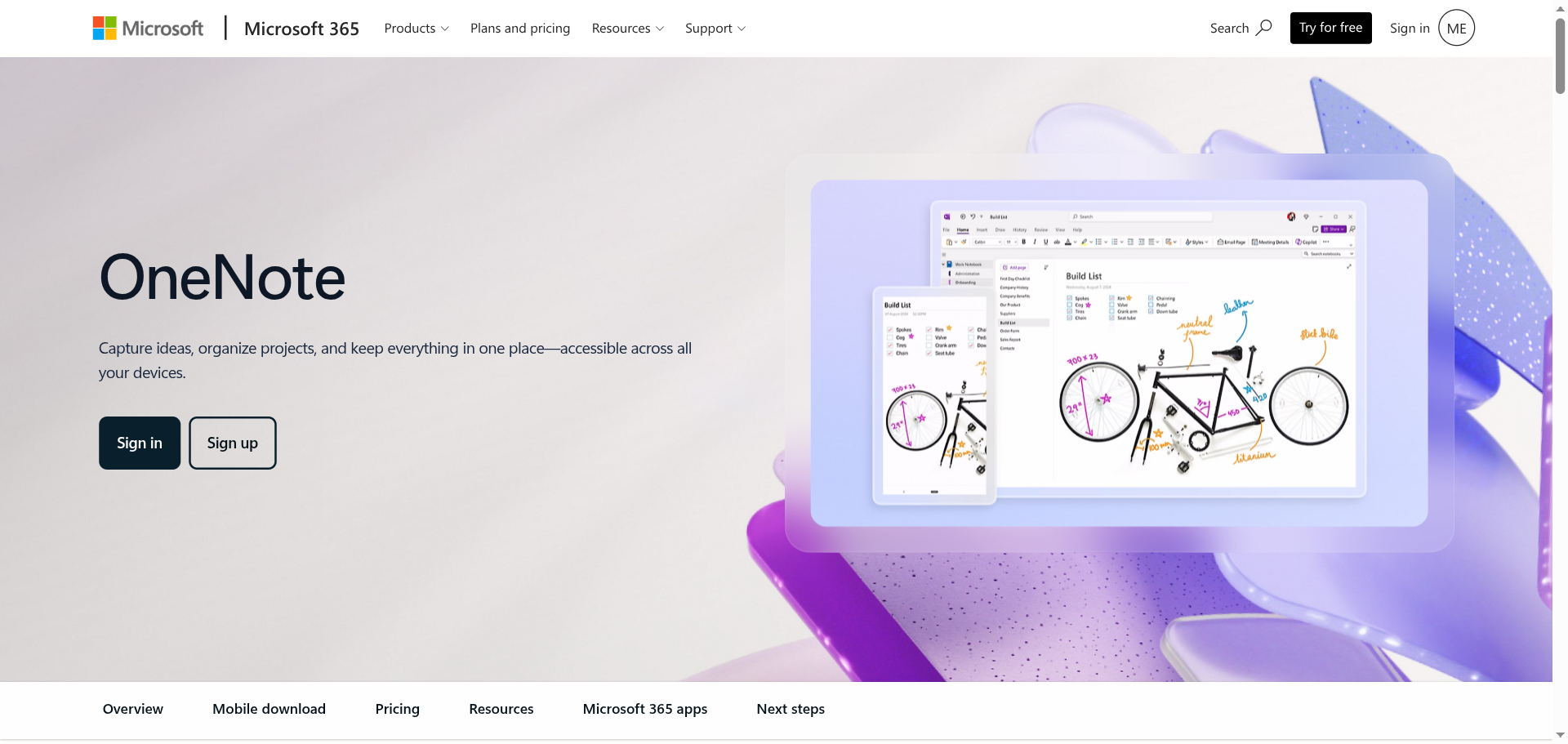
Best for: the person who wants one free app that behaves the same, and handles a stylus well, on both the iPad and the laptop.
OneNote is the strongest match for this exact setup. It is free, it has genuinely good apps on both iPadOS and Windows, and its inking is excellent, so you can handwrite with the Apple Pencil on the iPad and pick up on a Surface or any Windows PC. Its freeform canvas lets you drop text, ink, images, and files anywhere on the page, and everything syncs through your Microsoft account. The looseness is also its weakness: without discipline, notebooks can turn into clutter.
- Pros: completely free, first-class apps on both platforms, excellent handwriting and ink, and a flexible freeform canvas.
- Cons: the freeform layout can get messy, and it ties you to a Microsoft account for sync.
Pricing: free.
2. Notion
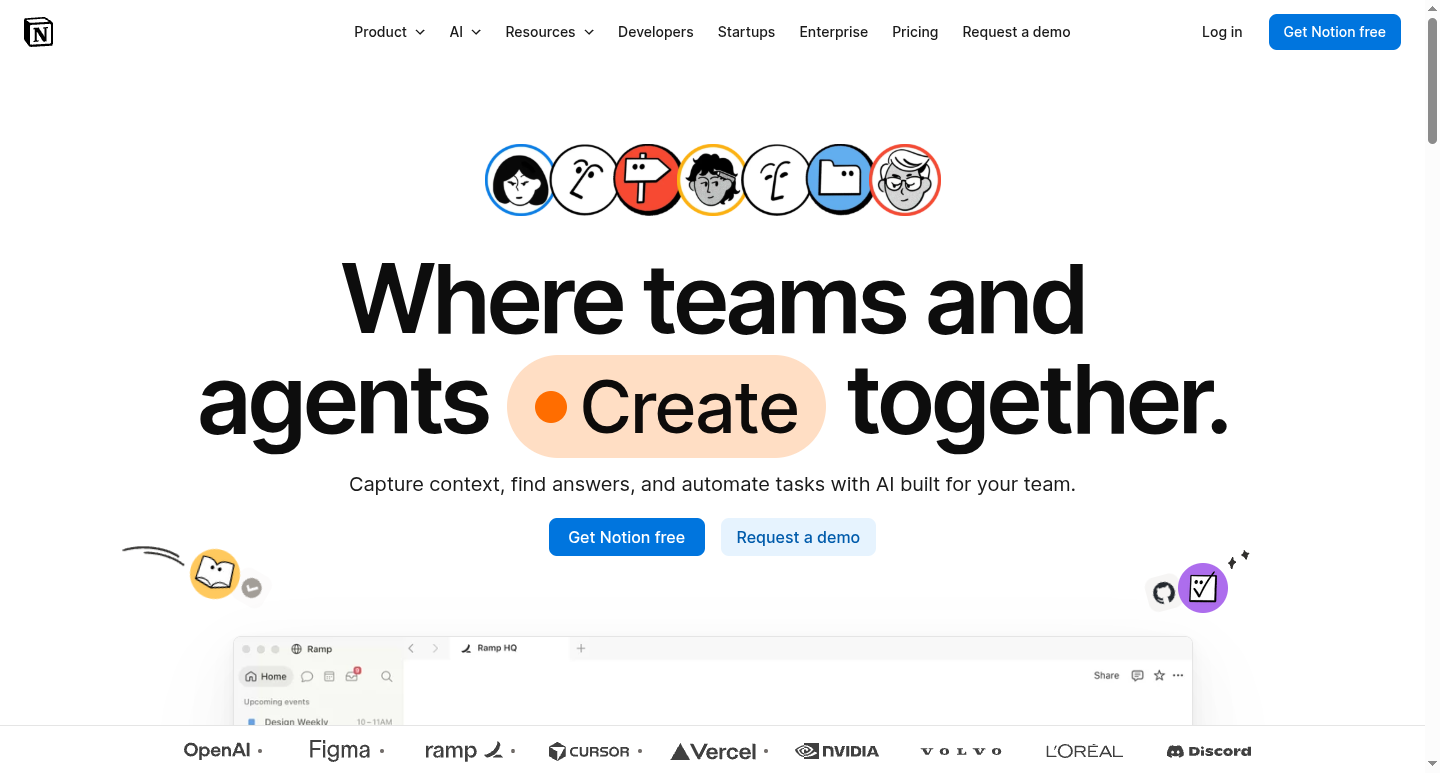
Best for: students and workers who want notes to live inside a structure of pages, tasks, and databases.
Notion treats notes as building blocks you can organize into linked pages, tables, and project trackers. If your notes feed into assignments, reading lists, or a study system, that structure is powerful, and it works the same on iPad and Windows through the apps and the web. The trade-off is that it is heavier than a plain notepad: quick jots feel like more effort, offline use is weaker, and handwriting is not its strength. For organizing knowledge rather than sketching it, though, it is hard to beat.
- Pros: flexible pages and databases, strong templates, and identical experience across devices and the web.
- Cons: overkill for quick notes, weaker offline and handwriting support, and it can feel slow with big workspaces.
Pricing: a free personal tier, with paid plans for more features and collaboration.
3. Obsidian
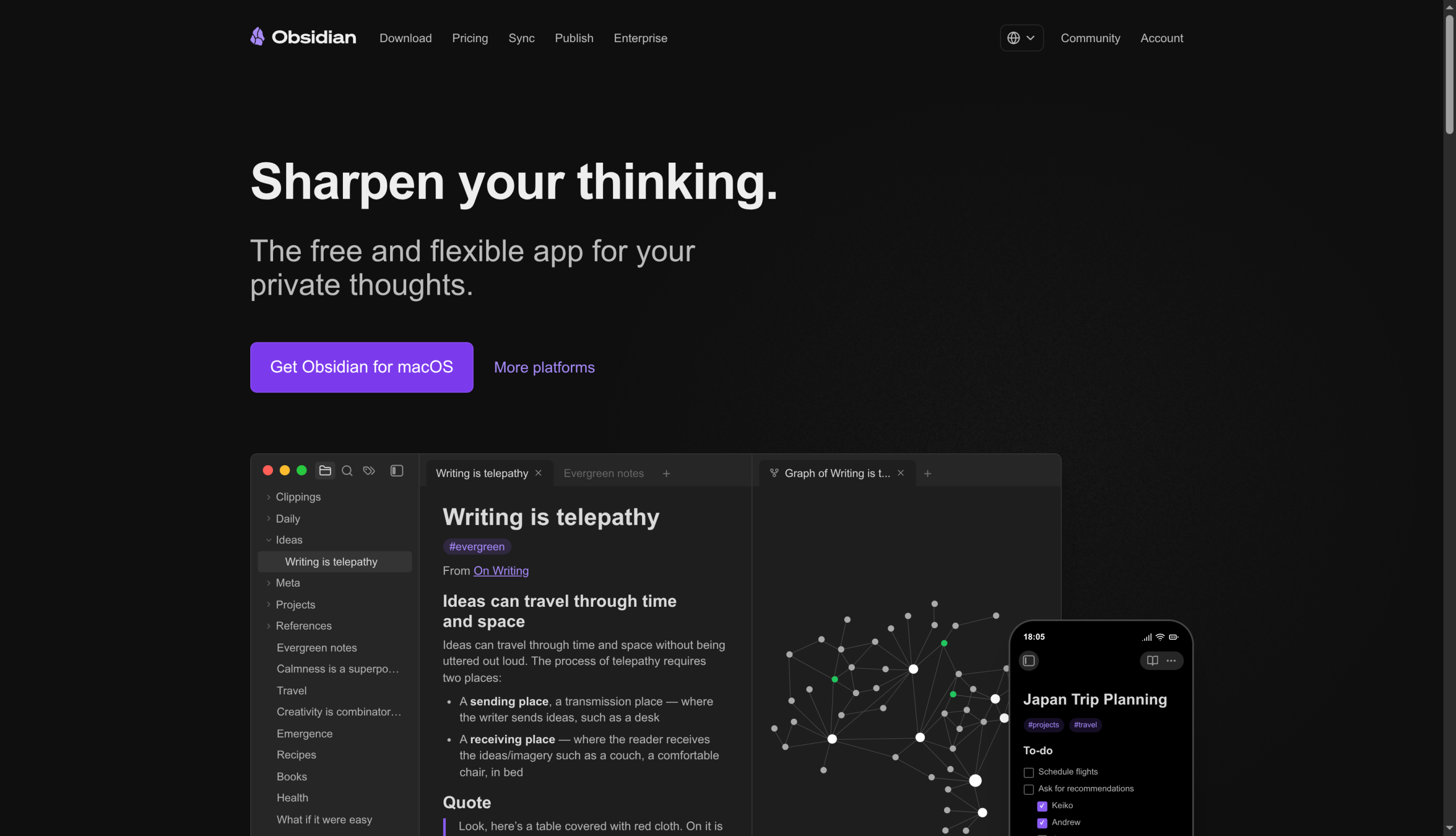
Best for: people who want their notes stored as plain files they own, with links that build a web of ideas.
Obsidian keeps your notes as local markdown files rather than in a company’s cloud, which appeals to anyone who wants privacy and long-term control. It shines at linking notes together into a connected knowledge base, and a large plugin community extends it endlessly. It runs on both iPad and Windows, and it is free for personal use. The catch for this setup is sync: keeping the same notes on iPad and a Windows laptop cleanly usually means paying for the official Sync add-on, and there is a real learning curve before it clicks.
- Pros: local files you own, powerful note linking, a huge plugin ecosystem, and free for personal use.
- Cons: a learning curve, no native handwriting, and reliable cross-device sync usually needs the paid Sync add-on.
Pricing: free for personal use; the official Sync service is a paid add-on.
4. Evernote
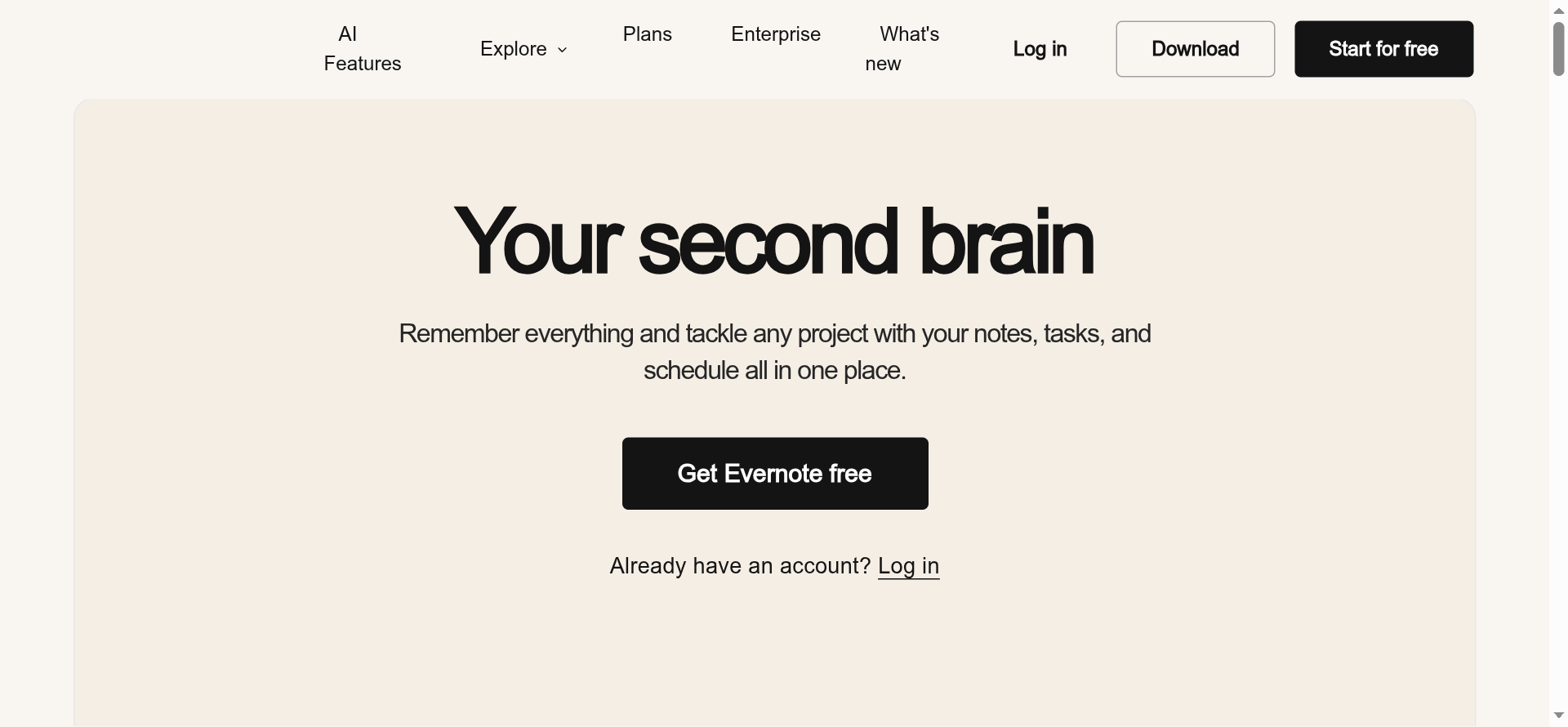
Best for: the collector who saves articles, receipts, and clippings and needs to find them again fast.
Evernote is the classic note vault, and its enduring strengths are its web clipper and its search, which can even find text inside images and scanned documents. On both iPad and Windows it works as a searchable archive of everything you have saved, organized into notebooks and tags. The reason it is not higher is the free tier, which has been trimmed over the years to tight device and upload limits, so getting the most out of it generally means paying. If your main need is capturing and retrieving a lot of material, it still does that job very well.
- Pros: an excellent web clipper, powerful search including text in images, and solid organization by notebook and tag.
- Cons: the free tier is limited on devices and uploads, and the useful plans are paid.
Pricing: a limited free tier, with paid plans for more devices, storage, and features.
How We Chose These
We required genuine parity across iPad and Windows, so anything that is brilliant on one and neglected on the other did not make the list. From there we looked at how reliably notes sync between the two devices, whether there is a usable free tier, and what each app is genuinely best at, since a note app is only useful if it matches how you think. We deliberately kept the list to distinct styles: a freeform all-rounder, a structured workspace, a linked local vault, and a searchable archive, so you can pick by working style rather than wade through near-identical options.
The Bottom Line
For most people juggling an iPad and a Windows laptop, OneNote is the easiest and cheapest starting point, especially if you write by hand. Choose Notion if you want your notes organized into a system, Obsidian if you care about owning your files and linking ideas, and Evernote if you mainly clip and search a large archive. Pick the one that matches how you actually take notes, set it up on both devices, and run a week of real classes or meetings through it before you commit your whole system.
Frequently Asked Questions
What is the best note-taking app for iPad and Windows?
For most people, Microsoft OneNote is the best choice because it is free, works equally well on both iPad and Windows, and has strong handwriting support on each. If you want structure, Notion is better; if you want local files and linked notes, Obsidian fits; and if you mainly clip and search saved material, Evernote is strongest. The best pick depends on your note-taking style.
Which of these apps is best for handwriting?
OneNote is the standout for handwriting across both devices, since its inking is excellent on the iPad with an Apple Pencil and works well on Windows too, and it can convert handwriting to text. Obsidian, Notion, and Evernote are built primarily for typed notes, so if handwriting is central to how you work, OneNote is the clear choice here.
Are there free note-taking apps that work on both?
Yes. OneNote is fully free and works on both iPad and Windows. Notion has a free personal tier, Obsidian is free for personal use, and Evernote has a free tier, though its limits are tight. OneNote is the most generous of the four for free cross-device note-taking, which is why it is the recommended starting point for most people.
Will my notes sync automatically between iPad and Windows?
With OneNote, Notion, and Evernote, sync is built in and automatic once you sign in on both devices. Obsidian is the exception: because it stores notes as local files, reliable syncing between an iPad and a Windows laptop usually requires the paid Obsidian Sync service or your own setup. If effortless sync matters most, one of the cloud-based three is simpler.
What To Do Next
Decide how you take notes first: by hand, in a structure, as linked ideas, or as a searchable pile of clippings. Then install the matching app on both your iPad and your Windows laptop, sign in, and confirm a test note appears on both before you rely on it. Give it one real week of classes or work. For more study and tech tips, see our Education and Tech News sections.