


Switching the household off LastPass is the moment to pick a manager that does passkeys well and makes shared logins and recovery painless.
If your family is leaving LastPass, you are in good company, and it is the right moment to choose a manager built for how people actually log in now, with passkeys alongside passwords. For a household that means three things: a family plan with shared vaults, solid passkey support across phones and laptops, and a recovery plan so nobody gets locked out. The four below each nail that in a different way, from an open-source value pick to a privacy-first option. 1Password is another polished choice worth a look, and the four here cover the rest of the field with distinct strengths.
Quick Answer
The best LastPass alternatives for families using passkeys are:
- Bitwarden: best overall value with an open-source family plan
- Proton Pass: best for privacy-focused families
- Dashlane: best for built-in breach monitoring and extras
- NordPass: best for a simple, guided switch
Quick Picks
| App | Best for | Family setup |
|---|---|---|
| Bitwarden | Value and open source | Low-cost family plan, generous free tier |
| Proton Pass | Privacy-first households | Family plan with end-to-end encryption |
| Dashlane | Breach monitoring and extras | Friends and family plan |
| NordPass | An easy, guided move | Family plan for several accounts |
1. Bitwarden

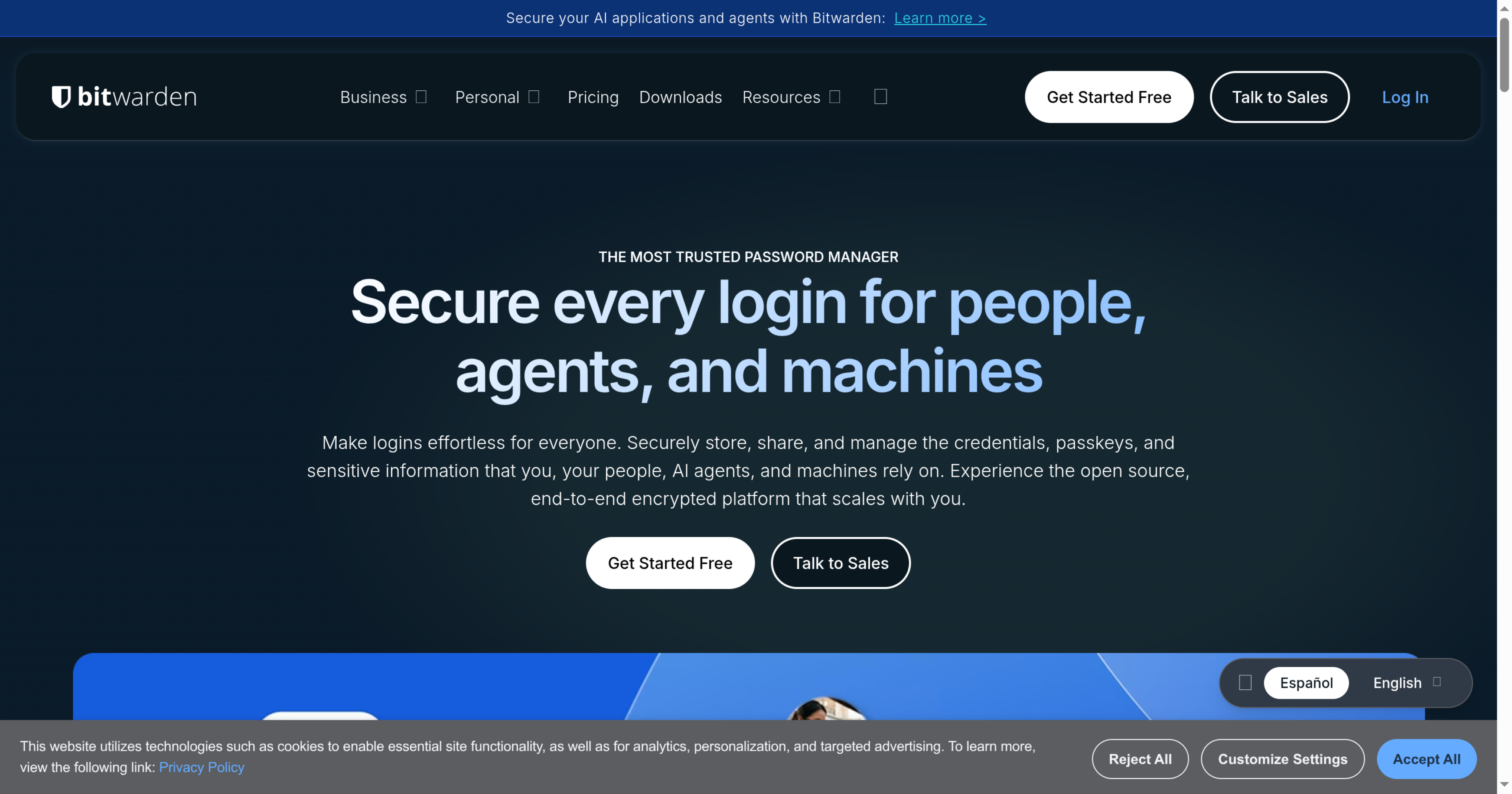
Best for: families who want strong security and shared logins without paying premium prices.
Bitwarden is the value leader, and it is open source and independently audited, which many security-minded families prefer. Its free tier is generous for one person, and the low-cost Families plan adds shared collections so the household can pass along the streaming and utility logins everyone needs. It stores and uses passkeys, and it runs on every major platform. The trade-off is polish: the interface is more functional than fancy, and some conveniences take a moment to find. For most families, it is the easiest recommendation.
- Pros: open source and audited, a low-cost family plan with shared collections, passkey support, and a genuinely useful free tier.
- Cons: a plainer interface than rivals, and a few features take some digging to set up.
Pricing: free for one person; a low-cost annual Families plan covering several members.
2. Proton Pass
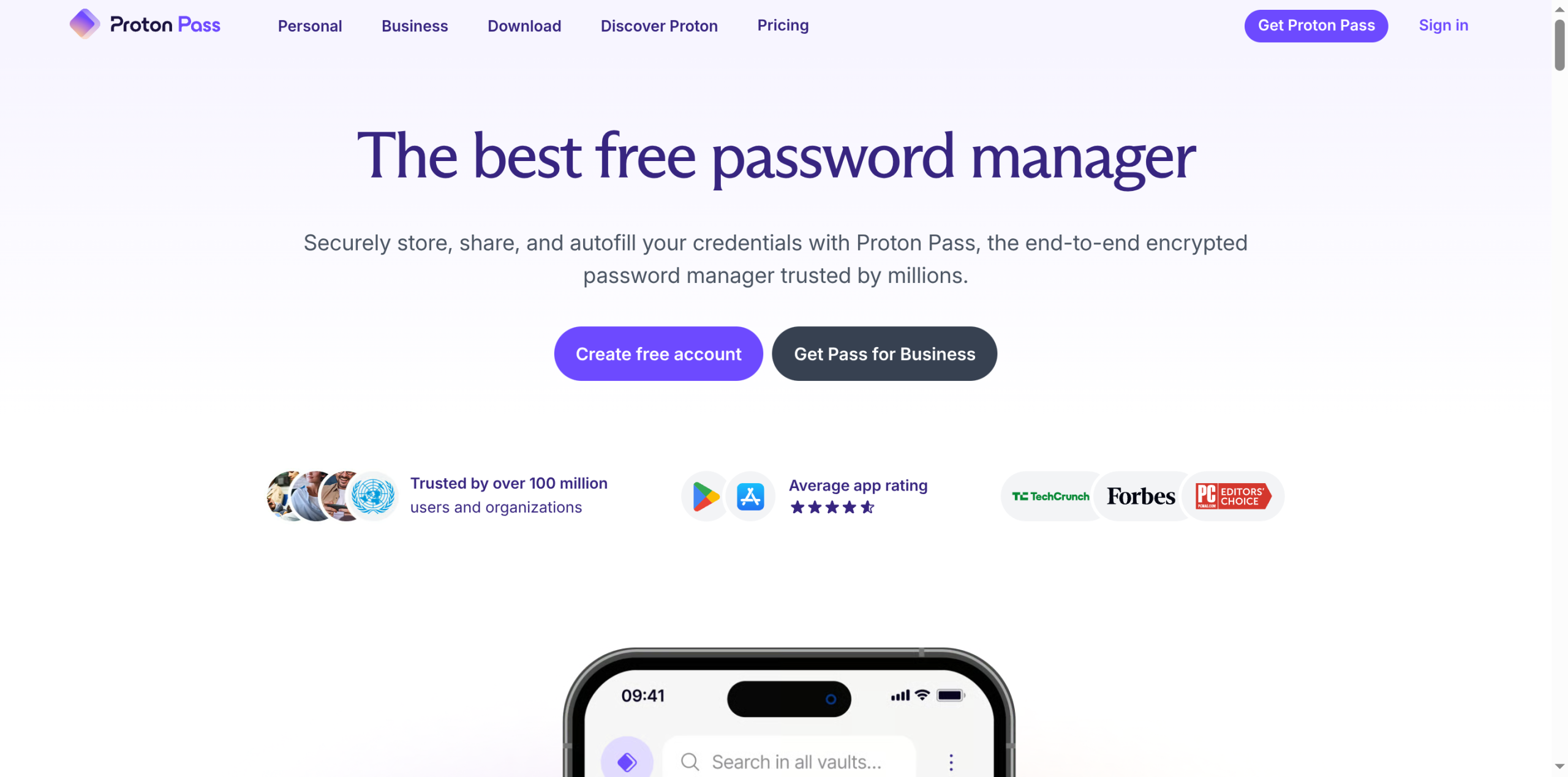
Best for: households that put privacy first and may want other private tools too.
Proton Pass comes from the Swiss company behind Proton Mail, with end-to-end encryption and a strong privacy reputation. It supports passkeys, offers a family plan, and includes handy extras like email aliases that hide your real address when you sign up for things. Families already using Proton for mail or storage can fold Pass into one plan. The catalog of power-user features is still growing compared with older managers, so a few niche tools are missing, but the privacy foundation is excellent.
- Pros: end-to-end encryption, a strong privacy track record, passkey support, and built-in email aliases.
- Cons: fewer advanced organizing features than veteran apps, and it is most cost-effective inside a wider Proton plan.
Pricing: a free tier, with paid individual and family plans, often bundled with other Proton services.
3. Dashlane
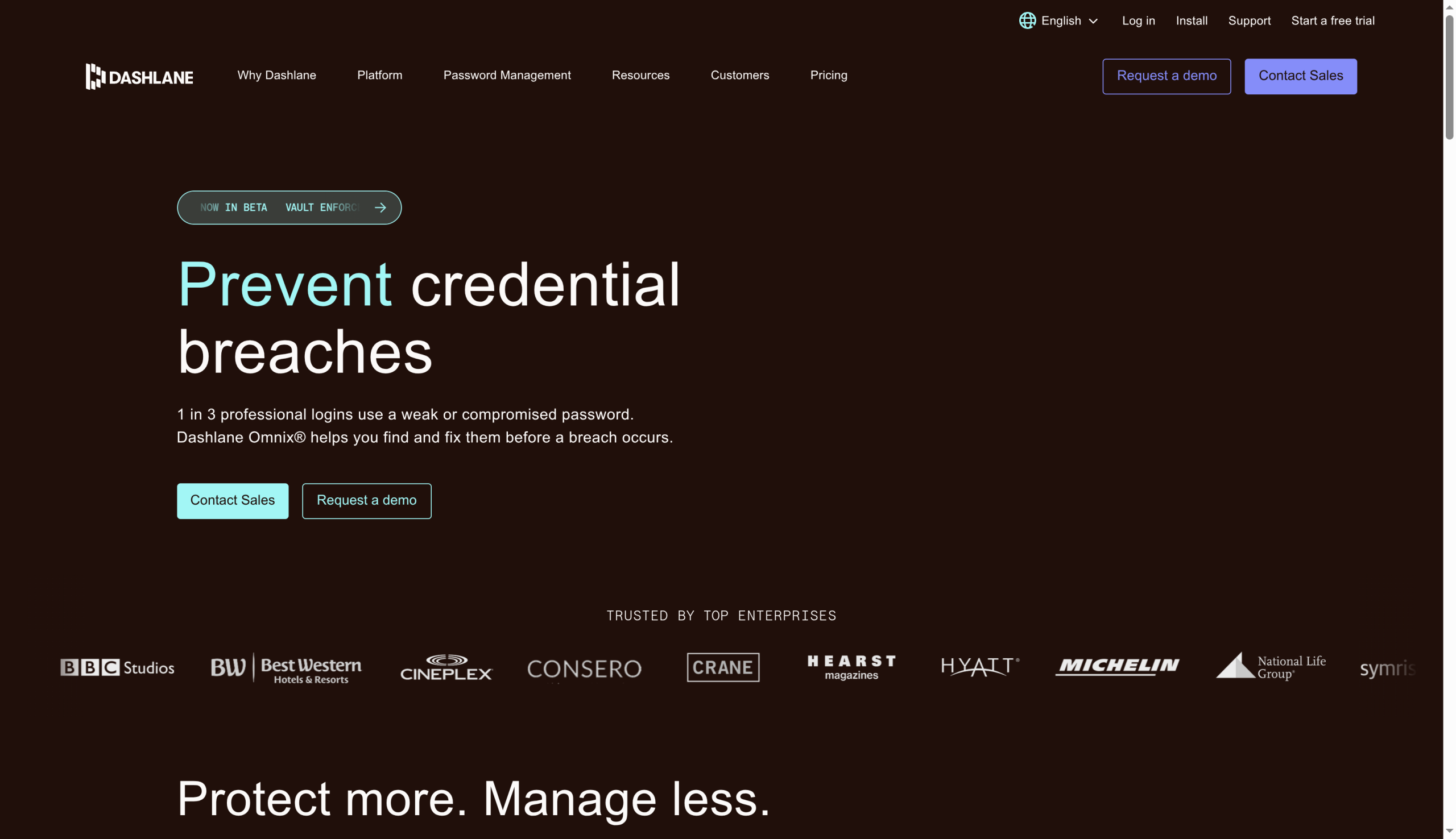
Best for: families who want monitoring and alerts baked in, beyond plain storage.
Dashlane leans into extras, pairing a polished manager with dark-web breach monitoring that warns you when a family member’s login shows up in a leak. It supports passkeys and offers a family plan covering several people. The catch is that Dashlane has moved to a web-first approach and trimmed its free option, so the useful version is a paid subscription. If you want a tidy app that actively watches for trouble and does not mind the price, it is a strong pick for a household.
- Pros: a polished interface, dark-web breach monitoring, passkey support, and a family plan for several members.
- Cons: the free option is limited, it leans web-first, and it costs more than the value picks.
Pricing: a limited free option, with paid individual and family plans.
4. NordPass
Best for: families who want a straightforward switch with clear onboarding.
NordPass comes from the maker of NordVPN and focuses on a clean, guided experience, which helps when you are moving less technical family members off LastPass. It supports passkeys, offers a family plan for several accounts, uses modern encryption, and includes email masking. The free tier limits you to one active device at a time, and it is newer than some rivals, so the ecosystem is smaller, but the import tools and simple layout make it an easy landing spot for a whole household.
- Pros: a clean guided setup, passkey support, a family plan, modern encryption, and email masking.
- Cons: the free tier allows only one active device, and the feature set is younger than veteran apps.
Pricing: a limited free tier, with paid individual and family plans.
How We Chose These
We focused on what actually matters for a family leaving LastPass: real passkey support, a family plan with shared vaults so household logins are easy to pass around, strong encryption, and a clear way to recover an account if someone is locked out. We also weighed price, since a whole family adds up, and how easy each app is for less technical members to adopt. We kept the list to four with distinct strengths, from an open-source value pick to a privacy-first option, so you can match one to how your household works.
One honest caveat about passkeys: they do not yet move cleanly between managers, since the industry is still finalizing a shared export standard. If you already created passkeys in LastPass or elsewhere, expect to re-create some of them in your new manager rather than import them wholesale. Before you switch the whole family, set up your recovery method, such as an emergency contact or recovery code, and confirm each person can sign in on their own devices.
The Bottom Line
For most families, Bitwarden is the easiest confident choice, combining strong security and passkey support with a low-cost family plan. Choose Proton Pass if privacy is your priority or you already use Proton, Dashlane if you want breach monitoring built in, and NordPass if you want the simplest guided switch for less technical relatives. Whichever you pick, set up the family plan first, add each person, plan your recovery method, and move accounts over in batches so nobody gets stranded mid-switch.
Frequently Asked Questions
What is the best LastPass alternative for families?
For most households, Bitwarden is the best choice because it pairs strong, open-source security and passkey support with a low-cost family plan and shared vaults. Proton Pass is better if privacy is your top concern, Dashlane suits families who want breach monitoring built in, and NordPass is the easiest guided switch for less technical members. 1Password is another polished option. The right pick depends on your budget and priorities.
Do these password managers support passkeys?
Yes. Bitwarden, Proton Pass, Dashlane, and NordPass all let you create, store, and use passkeys, which is why they suit families moving toward passwordless logins. Support keeps improving, so check each app’s current help pages for the platforms you use, such as iPhone, Android, and Windows. Passkey handling across phones and laptops is one of the biggest reasons to move off an older manager that lags on the feature.
Can you move your passkeys from one password manager to another?
Not cleanly yet. Unlike passwords, passkeys generally cannot be exported and imported between managers today, because the industry is still finalizing a shared standard for it. When you switch, plan to re-create some passkeys in your new manager by adding them again on each account, rather than expecting a bulk transfer. Your saved passwords, notes, and logins usually do import fine, so it is mainly the passkeys that need redoing.
Is a free password manager safe for a family?
The free versions here use the same strong encryption as the paid ones, so they are secure. The limits are about sharing and convenience: family sharing, shared vaults, and multi-device use on some apps require a paid family plan. Bitwarden’s free tier is the most generous for an individual, but for a household that wants shared logins and recovery options, a low-cost family plan is usually worth it.
What To Do Next
Pick the manager that fits your budget and priorities, then start the family plan and add each member before moving anything. Import your saved passwords, set up each person’s passkeys fresh on their accounts, and confirm everyone can sign in on their own devices. Set a recovery method now, while it is calm, so a forgotten master password does not lock someone out later. For more on staying secure online, see our Tech News and Family & Personal sections.