


Five iPad apps that let you write and edit documents with no connection, ranked for students who cannot risk a dead wifi signal.
Google Docs is fine at a desk with strong wifi. On an iPad, its offline mode is the weak link: you have to remember to make each file available offline in advance, the app can feel cramped compared with the browser, and students keep running into documents that simply will not load when the connection drops. If your coursework travels on an iPad, through a commute, a lecture hall with no signal, or an exam room, you want an editor that treats offline as normal rather than a special setting. Here are five Google Docs alternatives that do exactly that, sorted by the kind of student each one suits.
The best Google Docs alternatives for offline iPad editing in 2026 are:
- Apple Pages: best free, native option for iPad
- Microsoft Word: best for Word compatibility and serious documents
- WPS Office: best free cross-platform Office suite
- ONLYOFFICE Documents: best for privacy and open-source
- OfficeSuite: best lightweight all-in-one editor
Quick Picks
| App | Best For | Price | Offline Editing |
|---|---|---|---|
| Apple Pages | Free native iPad writing | Free | Full, works by default |
| Microsoft Word | Word files and formatting | Free to a point, then Microsoft 365 | Full, download files first |
| WPS Office | Free cross-platform suite | Free with ads, paid tier | Full on local files |
| ONLYOFFICE Documents | Privacy and open-source | Free app | Full on local files |
| OfficeSuite | Lightweight all-in-one | Free basic, paid Premium | Full on local files |
Table of Contents
1. Apple Pages

Best for: iPad students who want a free, fast writer that works offline without any setup.
Pages is already on your iPad, or a free download away, and offline is simply how it works. You can open, create, and edit documents with the connection off, and everything syncs back to iCloud once you are online again. There is no toggle to remember and no file to pre-download, which is the single biggest advantage over Google Docs on this device. Apple Pencil support means you can mark up a draft, and Scribble turns handwriting into typed text.
The trade-off is the Apple lock-in. Pages is excellent inside the Apple world and less convenient outside it, so if your professor wants a strict Word file, you will export to that format on the way out. For most essays, notes, and drafts, though, Pages is the smoothest offline writing experience an iPad can give, and it costs nothing.
- Pros: Free; offline by default with no setup; excellent Apple Pencil and Scribble support; clean, distraction-light interface.
- Cons: Best inside the Apple ecosystem; exporting to Word format can shift some formatting; less familiar to Windows users.
Pricing: Free on iPad.
2. Microsoft Word
Best for: Students who need true Word compatibility for assignments and shared documents.
When a class demands a proper .docx file with exact formatting, Word on the iPad is the safe answer. It edits offline once the file is on your device: as Microsoft’s own support notes explain, you download and open the documents you want before going offline, can create a blank document offline, and any changes sync when you reconnect. For anyone collaborating with Windows users or a professor who lives in Word, the compatibility is unmatched.
There is one catch worth knowing before you rely on it. Free editing on iPad is limited to screens up to about 10.9 inches, so a standard iPad or iPad mini can edit at no cost, while a 12.9-inch iPad Pro requires a qualifying Microsoft 365 subscription to edit. Check your screen size against your budget before committing.
- Pros: Best-in-class Word compatibility; reliable offline editing on downloaded files; familiar interface; strong formatting control.
- Cons: Large iPad Pro screens need a paid Microsoft 365 plan to edit; the full feature set sits behind a subscription.
Pricing: Free to edit on screens up to about 10.9 inches. Larger iPads and premium features need Microsoft 365, from around $6.99/mo.
3. WPS Office
Best for: Students who want a free, Word-compatible suite that also runs on their Windows or Android device.
WPS Office bundles a word processor, spreadsheet, and presentation tool into one free app, and it opens and saves Microsoft formats well. Local files edit offline without fuss, so a document saved to your iPad stays available on the train or in an exam hall. Because WPS runs across iPad, Windows, Android, and Mac, it is a good fit for students who move between an iPad and a laptop and want the same editor on both.
The free version shows ads and nudges you toward a premium plan, which is the main annoyance. Cloud sync and some advanced tools sit behind that paid tier. For straightforward offline writing and editing of Word files, though, the free app covers the essentials at no cost.
- Pros: Free core app; strong Microsoft format compatibility; works across iPad, Windows, Android, and Mac; full office toolkit in one place.
- Cons: Ads in the free version; some features and cloud sync require a paid plan.
Pricing: Free with ads. Premium runs roughly $3 to $6/mo depending on the plan.
4. ONLYOFFICE Documents
Best for: Privacy-minded students and anyone who prefers open-source tools.
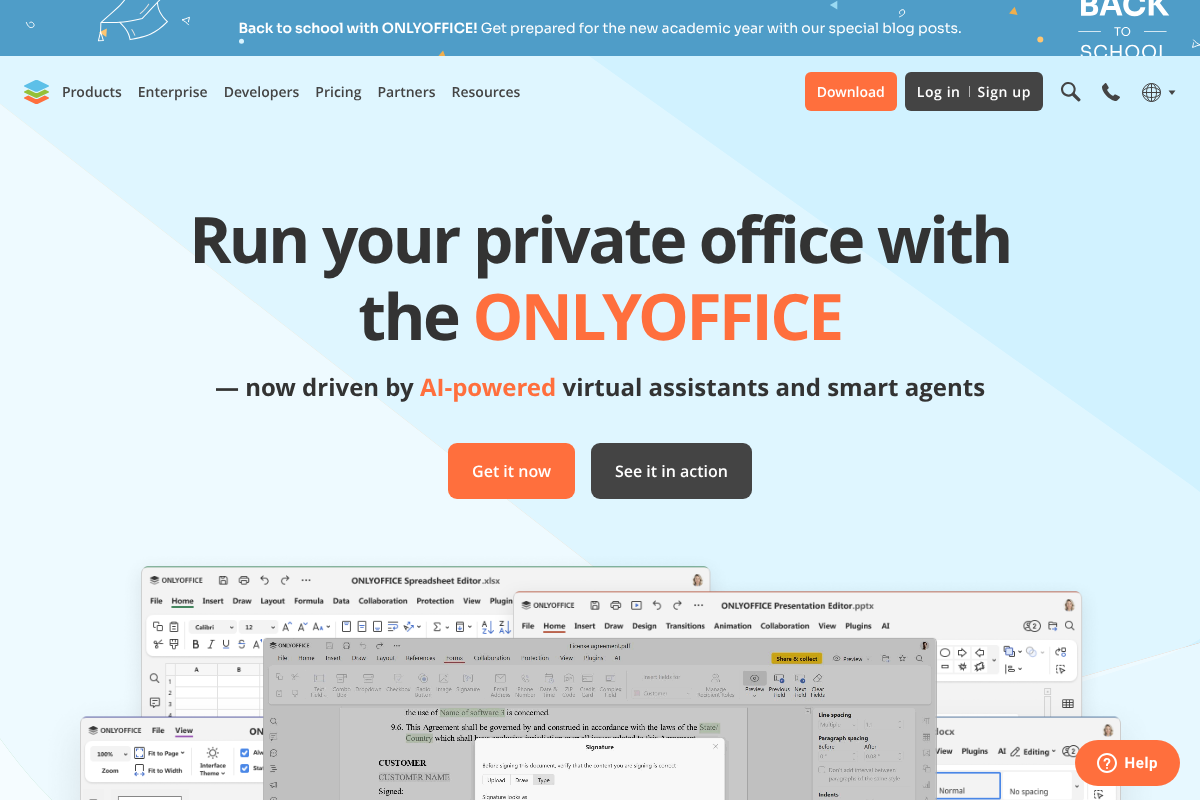
ONLYOFFICE Documents is a free, open-source office app with a strong record on Microsoft format compatibility. Its iPad app lets you create and edit documents stored locally on the device, so offline work is straightforward, and it keeps your files under your control rather than pushing everything to a company cloud. For students who care where their coursework lives, that independence is the draw.
It is a little less polished than Pages or Word on the finer touches, and the deepest collaboration features are built for its self-hosted server rather than the standalone mobile app. As a private, capable offline editor that handles Word files, though, the free app is a strong pick.
- Pros: Free and open-source; solid Microsoft format support; local offline editing; privacy-friendly approach to your files.
- Cons: Interface is less refined than the big names; advanced collaboration is aimed at self-hosted setups.
Pricing: Free iPad app. Paid cloud and enterprise plans are separate.
5. OfficeSuite
Best for: Students who want a light, all-in-one editor without a heavy subscription.
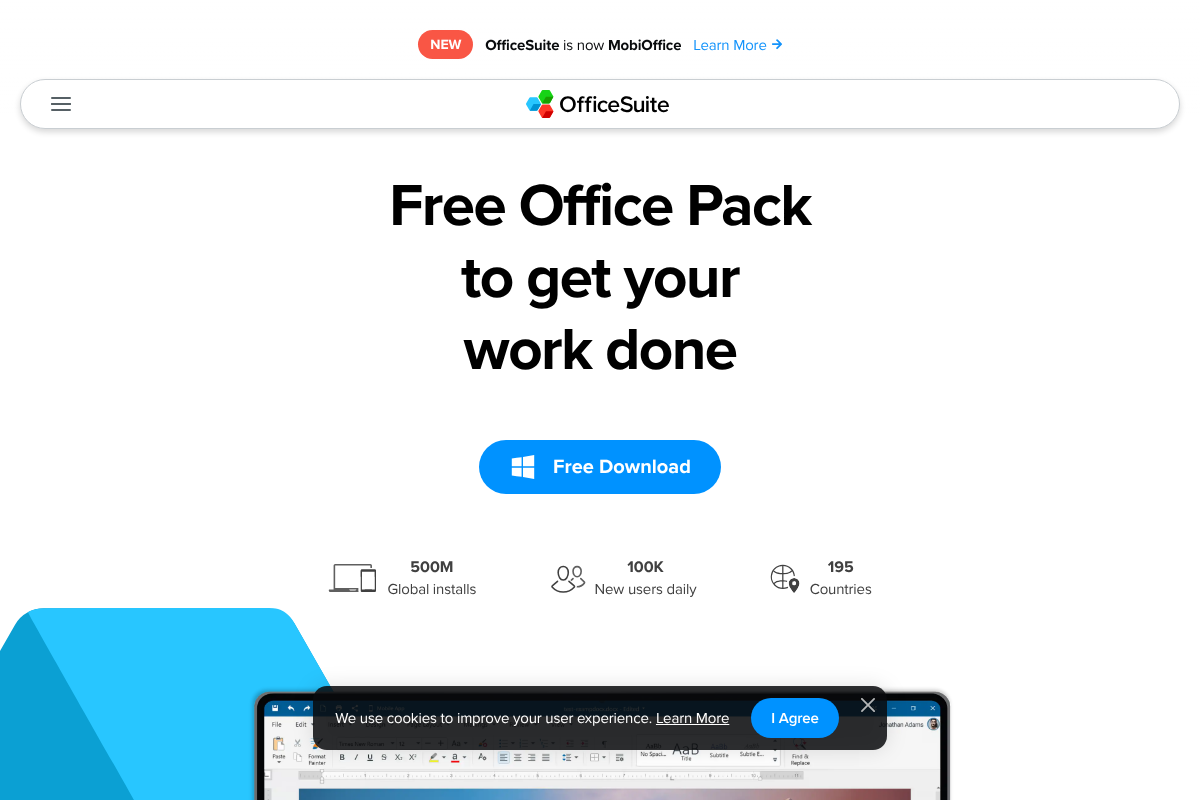
OfficeSuite, now rebranding to MobiOffice, is a long-running office app with a very large install base, and it covers documents, sheets, slides, and PDFs in one place. The iPad app edits local files offline, opens Microsoft formats, and stays light on your device, which suits students who want a single simple tool rather than a full productivity ecosystem.
The free version is limited and prompts you toward a Premium plan for the full feature set, and it is less well known than Word or Pages. For basic offline document work and PDF handling on a budget, though, it does the job without asking much of your iPad.
- Pros: Lightweight all-in-one for documents, sheets, slides, and PDFs; offline editing of local files; low cost of entry.
- Cons: Free tier is limited; the best features need a Premium plan; smaller name than the market leaders.
Pricing: Free basic version. Premium runs around $3.99/mo or an annual plan.
How We Chose These
We started from the one requirement that matters most for this use case: the app has to let you write and edit with the connection off, on real coursework, without a fragile setup. From there we weighed how reliably each handles Microsoft Word files, since that is what most classes expect, and how usable each feels on an iPad screen with a keyboard or Apple Pencil. We favored apps with a genuine free tier or a fair price for students, clear offline behavior rather than a hidden toggle, and cross-device support where it helps someone who also uses a laptop. Each pick earns its place for a different student: the all-Apple writer, the Word purist, the cross-platform switcher, the privacy-conscious, and the minimalist.
The Bottom Line
For most iPad students, Apple Pages is the easiest answer: free, native, and offline with zero setup. If your assignments demand exact Word formatting, use Microsoft Word, and check whether your iPad size needs a Microsoft 365 plan. WPS Office is the best free choice for anyone who also works on Windows or Android, ONLYOFFICE Documents suits the privacy-minded, and OfficeSuite is the light all-in-one. Whichever you pick, save a local copy of anything you will need offline, and confirm it opens with the wifi off before the day you depend on it.
Frequently Asked Questions
What is the best Google Docs alternative for offline editing on iPad?
For most students, Apple Pages is the best alternative because it is free, built for the iPad, and works offline with no setup. If you need strict Microsoft Word compatibility, Microsoft Word is the better pick, keeping in mind that large iPad Pro screens require a Microsoft 365 plan to edit. WPS Office is the strongest free cross-platform option.
Does Google Docs work offline on an iPad?
It can, but you have to set it up in advance by marking specific files as available offline, and students often find it unreliable on iPad compared with a desktop browser. If offline access is important to you, a native app like Pages or Word that treats offline editing as normal is a more dependable choice.
Can I edit Microsoft Word files for free on an iPad?
Yes, within limits. Microsoft Word is free to edit on iPad screens up to about 10.9 inches, which covers the standard iPad and iPad mini. A 12.9-inch iPad Pro needs a qualifying Microsoft 365 subscription to edit. Free alternatives like WPS Office, ONLYOFFICE Documents, and Apple Pages can also open and edit Word files without a subscription.
Which iPad writing app is best for students on a budget?
Apple Pages is free and the simplest to start with on an iPad. WPS Office and ONLYOFFICE Documents are also free and add Microsoft format compatibility and cross-device support. Between them, a student can cover almost any offline writing need without paying, upgrading only if they want ad-free use or advanced features.
What To Do Next
Install two of these apps and test them the honest way: put your iPad in airplane mode, open a real assignment, and try to write and save. The one that opens instantly and holds your edits is your answer. For students on larger iPads weighing Word, review Microsoft’s Word for iPad help so the screen-size limit does not surprise you. For more study and tech guidance, see our Education and Tech News sections.