
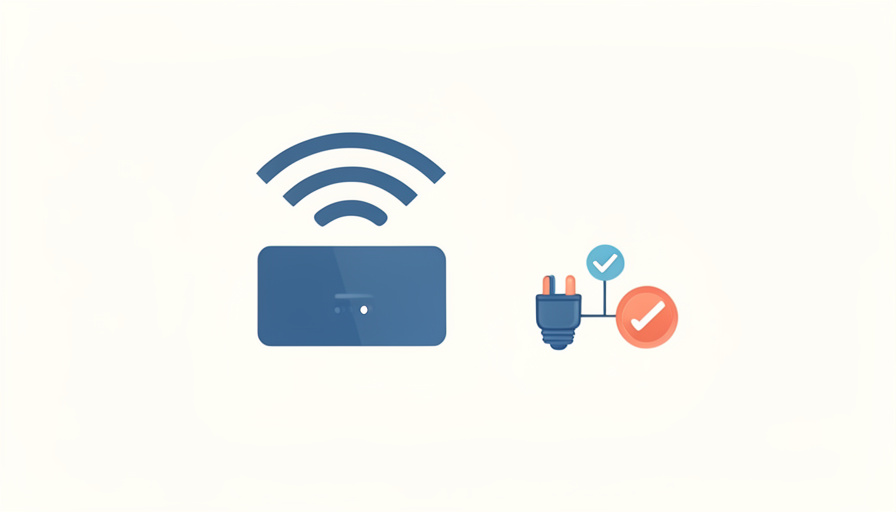
The router settings that quietly shut smart plugs, bulbs, and cameras out, and the one-line fix for each.
Smart home gear is picky about Wi-Fi in ways a laptop never is. A phone will happily hop between bands and shrug off a security setting your smart plug cannot handle. So when a device that worked last week suddenly reads offline, or a new one refuses to finish setup, the problem is usually not the device. It is a router setting doing exactly what it was designed to do, just in a way your smart home hates. Here are the settings that cause it and how to fix each one.
What To Know
Most smart home devices use the 2.4 GHz band and older, simpler Wi-Fi standards, so the settings that trip them up are the ones that hide, change, or lock down that band. The usual culprits are band steering that pushes a device onto 5 GHz it cannot join, WPA3-only security that older gadgets do not support, and isolation settings that stop your phone from reaching the device during setup. The fixes are almost always small: give the 2.4 GHz band its own name, allow the older security mode, and turn off isolation for your main network. Change one setting at a time so you know which one did the job.
Table of Contents
Start Here: The 2.4 GHz Problem
Most smart home connection failures trace back to the 2.4 GHz band, which reaches farther and passes through walls better than 5 GHz, which is why cheap plugs and sensors use it. Three settings get in the way.
- Band steering (Smart Connect): This merges your 2.4 and 5 GHz networks under one name and decides which band each device uses. A smart plug that only speaks 2.4 GHz can get shoved toward 5 GHz and fail to connect. As TP-Link’s own guidance notes, the fix is to turn off Smart Connect and give the 2.4 and 5 GHz bands separate names, then join your device to the 2.4 GHz one directly.
- A hidden or disabled 2.4 GHz band: Some newer routers bury or de-emphasize 2.4 GHz to push devices onto faster bands. Make sure 2.4 GHz is enabled and broadcasting its own SSID so setup apps can find it.
- Channel width set too wide: Forcing 40 MHz on 2.4 GHz can confuse older devices. Set the 2.4 GHz channel width to 20 MHz for the widest compatibility.
Security Settings That Lock Devices Out
Newer routers ship with stricter security by default, and smart home gear is often years behind on standards. These settings quietly reject older devices.
- WPA3-only mode: Many smart devices support only WPA2. If your router is set to WPA3 alone, they cannot join. Switch to a WPA2/WPA3 transition or mixed mode, or a dedicated WPA2 network for smart home gear.
- MAC address filtering: If you have an allow-list of approved devices, a new plug or bulb is blocked until you add its MAC address. Either add the device or turn the filter off during setup.
- Randomized (private) MAC on your phone: Your phone’s private Wi-Fi address can break setups that expect a stable address or a reserved IP. Turn off the private address for your home network on the phone you use to set devices up.
Isolation and Discovery Settings
Smart home setup often needs your phone and the device to see each other on the same network. Isolation features block exactly that.
- AP or client isolation: This stops devices on the network from talking to one another, which is good for a coffee shop and bad for a smart home. Turn it off on your main network, and remember that many guest networks isolate by default, so do not set devices up on the guest SSID.
- IGMP snooping and multicast settings: Discovery for casting, HomeKit, and similar systems relies on multicast traffic. If devices pair but will not show up or respond, try adjusting IGMP snooping, since an overly aggressive setting can drop the discovery messages these systems use.
IP and Firewall Settings
Sometimes the device connects to Wi-Fi but still cannot reach the internet or your app, which points to how it gets an address and what the firewall allows.
- A full or tiny DHCP pool: If your router has run out of addresses to hand out, a new device connects to Wi-Fi but gets no IP. Widen the DHCP range, or reserve a fixed IP for devices that keep dropping.
- An overly strict firewall or disabled UPnP: Some devices need to reach their maker’s cloud to work. A very strict firewall rule or a blocked outbound connection can leave a device online locally but useless in its app. Loosen the specific rule or re-enable UPnP if the manufacturer requires it.
A Quick Fix Checklist
| Symptom | Likely setting | Fix |
|---|---|---|
| New device will not finish setup | Band steering or isolation | Split the bands, join 2.4 GHz, turn off isolation |
| Device connects then shows offline | WPA3-only or channel width | Use WPA2/WPA3 mixed, set 20 MHz on 2.4 GHz |
| Connected to Wi-Fi, no internet | DHCP pool or firewall | Widen DHCP or reserve an IP, loosen the rule |
| Blocked with a security allow-list | MAC filtering | Add the device MAC or disable the filter |
| Only works on guest network off | Guest isolation | Set up on the main SSID instead |
If you use a mesh system like Google Wifi or Nest Wifi, the band controls live in the app rather than a web page, and how those systems handle the different bands is worth understanding before you change anything, as Google’s documentation on Wi-Fi bands explains.
Frequently Asked Questions
Why do my smart home devices keep going offline?
The most common cause is a router setting rather than the device. Band steering can push a 2.4 GHz-only device onto a band it cannot use, WPA3-only security can reject older devices, and a full DHCP pool can leave a device connected but without an address. Splitting your bands, allowing WPA2, and reserving an IP fix most cases.
How do I connect a smart device that only supports 2.4 GHz?
Give your 2.4 GHz band its own network name by turning off band steering or Smart Connect, then connect the phone you are using for setup to that 2.4 GHz network. Many setup apps need the phone on the same 2.4 GHz band as the device. Set the 2.4 GHz channel width to 20 MHz for the best compatibility.
Should I turn off band steering for a smart home?
Often, yes, at least for setup. Band steering is convenient for phones and laptops, but it causes the most smart home connection trouble. A common approach is to split the bands into separate SSIDs so smart devices always land on 2.4 GHz, or to create a dedicated 2.4 GHz network just for your smart home gear.
Why does my smart device work only on the guest network turned off?
Guest networks usually have client isolation switched on, which stops your phone and the device from seeing each other during setup. That is why some devices only pair when you use the main network. Set smart home devices up on your primary SSID, and turn off AP or client isolation there if it is enabled.
Final Word
When a smart device drops off, resist the urge to factory reset it first and check the router instead. Split your bands, allow the older security mode, and switch off isolation on your main network, changing one setting at a time so you can tell what worked. A few minutes in the router settings usually beats an hour of re-pairing. For more home tech and setup guidance, see our Tech News and Home Improvement sections.

Leave a Reply
You must be logged in to post a comment.